



 No. 1 Viral Appin United States 🇺🇸


 #1 AI Interview Assistanton SimilarWeb
Your Real-Time AI Interview Assistant
Get the right answer while you're still talking, through interviews, sales calls, client meetings, or any conversation where freezing up isn't an option.

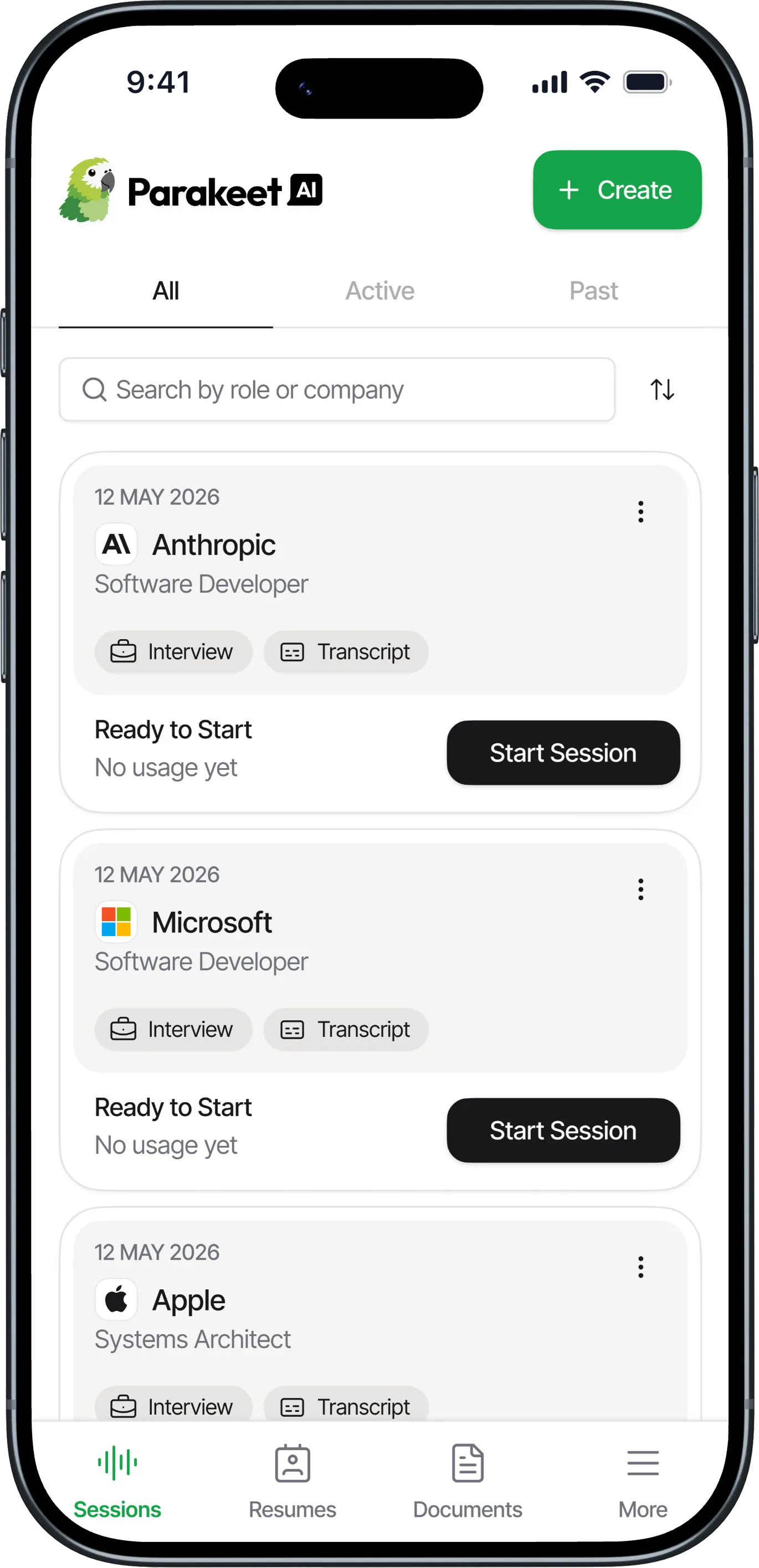


Mock Interviews
Practice out loud against an AI interviewer that answers back, then read the transcript. Your first mock is free.
Resume Maker
Build a resume tailored to the role you're chasing, so the call starts from the right story.
Headshots
Turn one photo into studio-quality headshots for LinkedIn and your resume. Same face, your pick of look.
Everything You Need, Mid-Conversation
Code, speech, and answers, handled live while the call is still happening.
Full Coding Support
You can use ParakeetAI for technical calls. It listens for coding questions and reads code shared on your screen, then talks the approach through with you while the call is still going.
Blazing Fast Transcription
We use a state-of-the-art transcription model that provides
a highly accurate model in recent breaking speed.


100% Accurate Responses
We chose between the best LLMs available to provide
the most accurate answers.
Your 100% Private Advantage
Get real-time answers without distraction or judgment. Completely undetectable, completely yours.
Share your screen while ParakeetAI stays completely invisible to others.
The app stays hidden from the Dock, with no icon or activity indicator.
The process has no visible name or icon in Activity Monitor.
Switch tabs or windows without platforms detecting that you moved away.
Your cursor stays unchanged when hovering, clicking, or adjusting settings.
We check it stays invisible on every one of these
Checked recently6 of 6
Verified
Open one to watch that test yourself.
People Trust & Love ParakeetAI
Real people. Real conversations. Real confidence.
Before, During,
And After The Call.
ParakeetAI runs in the background, knows your material, and handles the call from start to notes.
Auto Answer
Detects questions live and suggests answers, so you're never caught blank.

Auto-detect meetings
Spots meetings as they start and asks if you want to join, with no setup mid-call.
Documents
Upload briefs, notes, or playbooks to reference live during your call.
AI Notes
Key points, action items, and decisions, summarized after every call.
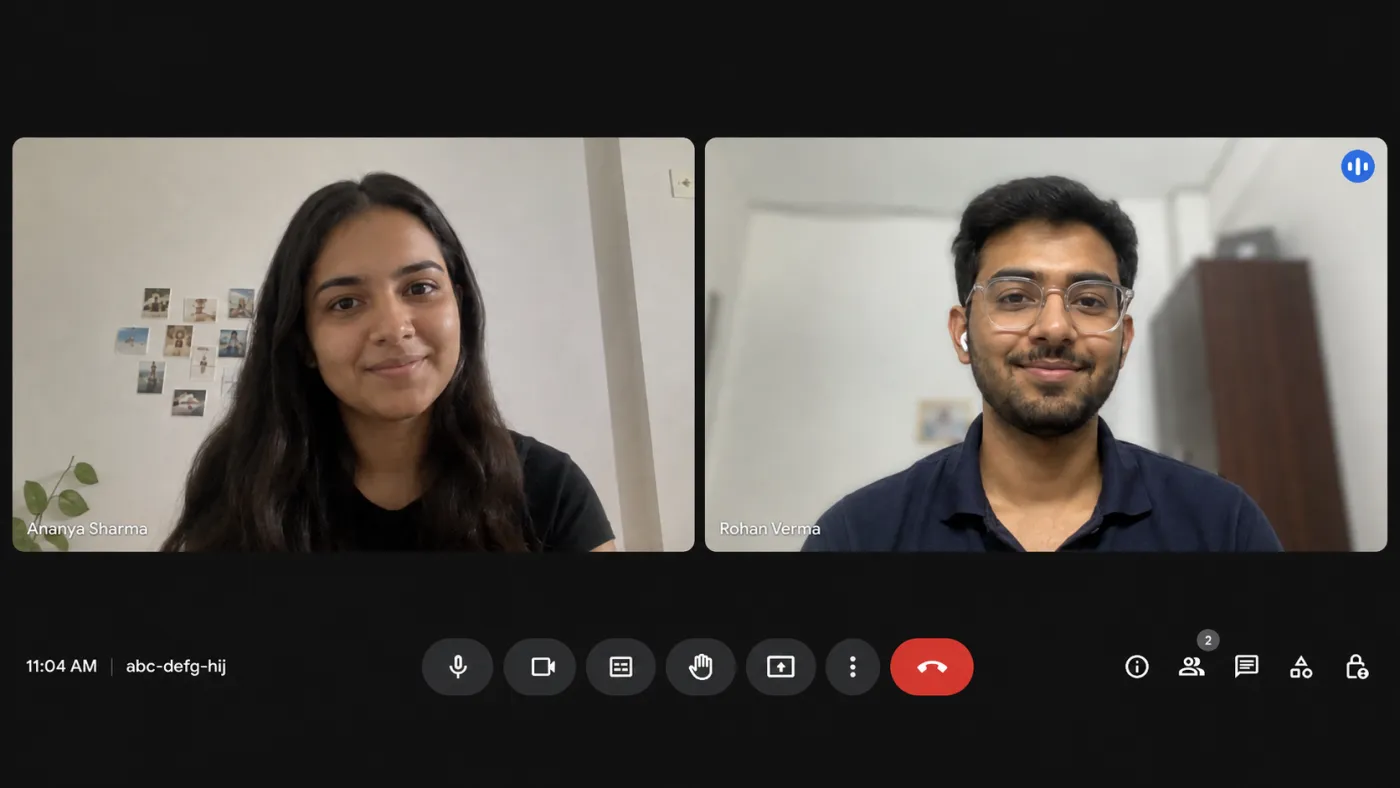
Connect to your actual call by sharing the call tab.
Practice against an AI interviewer instead of a Real Session.
Mock Interview
Join a real call, or practice against an AI interviewer. Your first mock interview is free.
Transparent Pricing Options
Subscribe for unlimited calls, add Job Search for the tools that get you the interview,
or buy credits and use them whenever.
Interview Assistant
- Unlimited calls
- Unlimited mock interviews
- Not included: Unlimited resume PDF downloads
- Not included: Unlimited headshots


Your Advantage, Anywhere
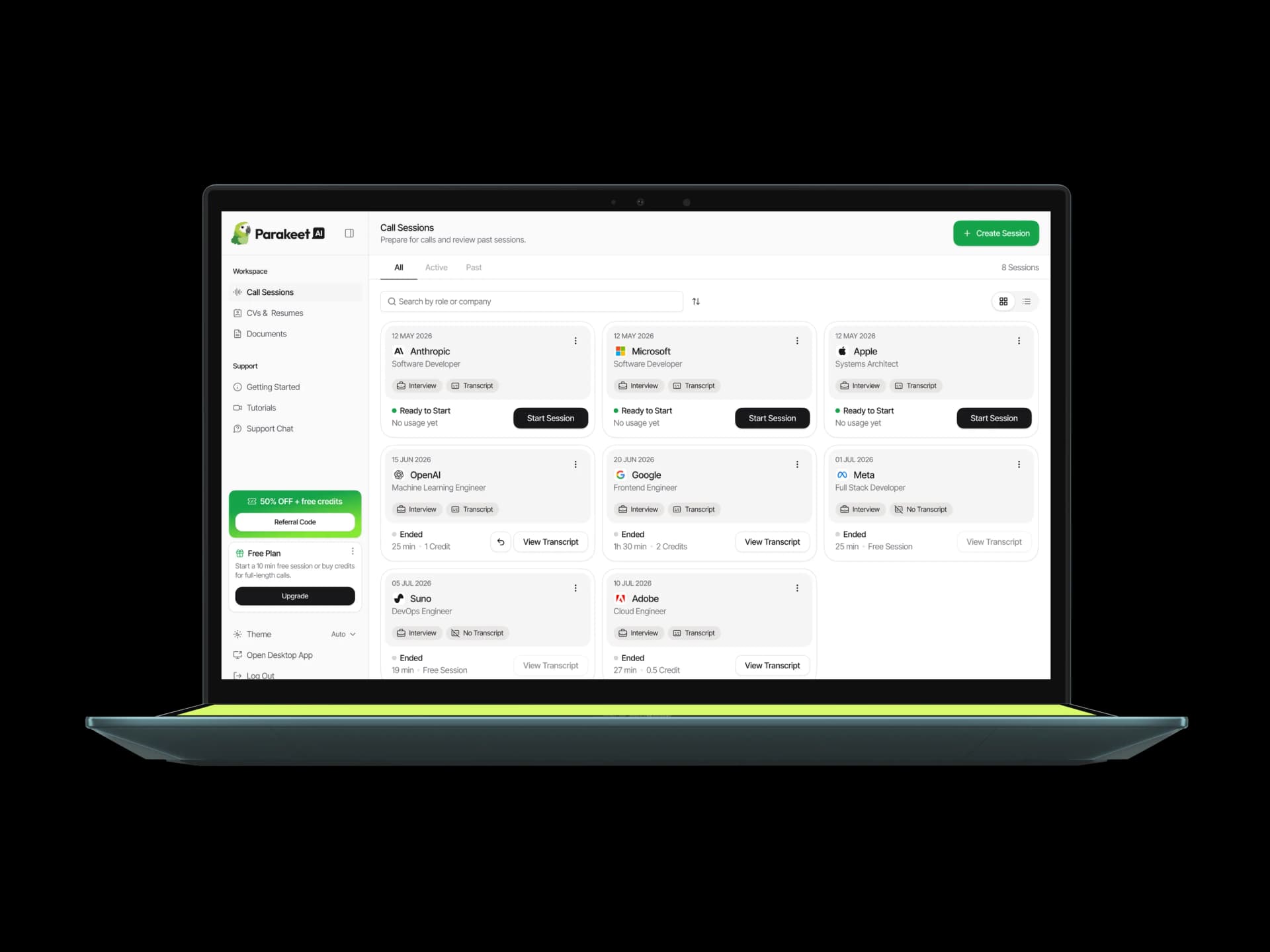
Desktop app, web, or mobile. Same powerful answers, wherever you are.
Works directly on Your Browser
Access ParakeetAI instantly from your browser. Same answers, zero setup.
Frequently Asked
Questions
Couldn't find what you were looking for?
ParakeetAI supports 50+ languages — you'll find the full list in the language dropdown when you start a session. It listens for one language at a time, so if you switch languages mid-call, update the session language to match.
Yes. ParakeetAI offers full coding support, including code suggestions and explanations, and it works in both interviews and regular calls.
Yes. When you are asked to design or draw a system — its architecture, components, how they connect or how data flows — the answer ends with a small flowchart of it under the written answer, so you can follow it while you draw it yourself. With the Bullet points answer format the diagram is often left out; Script + bullets or Full script shows it. Other questions get no diagram. If a diagram can't be drawn, you see its text as a code block instead. In the desktop app this needs the latest version: an older one gets the written answer without a diagram, so update the app if you don't see them.
ParakeetAI uses your uploaded CV or resume, any documents you've added, and anything you type into the Instructions field when you create a session. It holds up to 20,000 characters — a whole job description fits; longer material belongs in a document. You can also send ParakeetAI messages during the call itself.
Yes. ParakeetAI supports phone calls over Google Voice. Start a session in the browser and click the phone icon for setup instructions. If the call has to stay on your phone, put it on speaker and turn off system audio in the desktop app (the laptop button): it then hears you both on your mic, so an answer may now and then respond to you.
On a phone, the call screen answers from what it hears: press Answer, or let Auto Answer respond on its own. For a question that's shown rather than spoken, such as a coding problem, press the image button beside Answer (not in a mock interview, which has none) and take a photo of it, or pick a photo (HEIC included), a PDF or a text or code file: it's sent straight away for an answer, one file at a time. Typing your own question in the chat box, and screenshots, are on a computer: the desktop app, or desktop Chrome.
A native ParakeetAI mobile app is on its way to the App Store and Google Play, but it isn't available to download just yet. In the meantime, use the mobile-optimized version directly in your browser: no download needed. Visit parakeet-ai.com on your phone and sign in.
The desktop app runs on Windows and on macOS 13 (Ventura) or later. An older Mac keeps the version it has but gets no more updates, and once an update becomes required the app stops working there. In a browser, ParakeetAI needs desktop Chrome, which is also the way to use it on Linux. Other browsers aren't supported for live sessions, and the desktop app works whatever your default browser is.
You can choose the AI model when you create or edit a session, from the model dropdown. Options include several Gemini, GPT, and Claude models, with a fast default selected for you. Every plan and credits get the same choice: no model is unlocked or held back by how you pay, and a model that isn't in the dropdown isn't offered on any plan. Lighter models respond faster; larger models can give more detailed answers. The model you pick is the one used, except for images: on Gemini 3.5 Flash Lite (the default), or on a model that can't read images, a message with a screenshot, photo or PDF is answered by Gemini 3.6 Flash, which reads images more reliably. If your remembered model ever changes on its own, an app update either reset it to the current default or moved a retired model to its replacement (Claude 4.5 Sonnet now runs as Claude Sonnet 5, and GPT-5.6 Sol as GPT-5.6 Terra) — just pick your model again.
Yes. When you create a session you choose the mode — interview, or regular call for meetings and other conversations. It also works during online exams. Interview mode additionally uses your uploaded CV or resume; regular call mode doesn't, since it's built for conversations where that isn't relevant. Everything else — documents, instructions, transcripts, notes — works the same in both.
The button in a live session reads Exit while the session can be returned to, which is a free or credit session with time on its timer, and End when it can't. Exit asks which you want: Leave for now keeps the timer running and takes you back to the dashboard, and the session's card (under Up next on a phone) keeps its Join session button until the time runs out; End session stops the timer, after which you have 5 minutes to pick it back up for 0.5 credits (a mock interview can't be picked back up). On a plan that covers calls there is no timer to leave running, and the intro session can't be rejoined or extended, so there the button reads End and ends the session at once. It works the same on a computer, in the desktop app and on a phone.
Yes. In the chat on a computer (the desktop app, or a browser session), click the paperclip beside Add screenshot and pick an image, a PDF, or a text or code file; you can add a question of your own and send them together. On a phone, the image button beside Answer takes the same files and sends one straight away. An image, iPhone HEIC photos included, is sent like a screenshot. A PDF of up to 20 MB is sent as pictures of its pages, the first 10 at most. A text or code file is sent as its text: up to 3 per message, with 8,000 characters between them. One message holds up to 10 images and pages in 4 MB. Word documents, spreadsheets and archives can't be attached: save one as a PDF first, or add it under Documents before the call. The file picker is your computer's own window, so screen sharing can show it, even from the desktop app with Private on. No paperclip in the desktop app? Update it to the latest version.
The Job Board searches open jobs from company career sites, best matches first (or newest first, with Newest). On a computer it's Find jobs under Job Search in the sidebar; on a phone, search from the top of the Job Search tab. Before you search, Find jobs lists the newest jobs for the place and filters in the form under Recently posted. Search by job title and place, and narrow it with Posted, work type (On-site, Hybrid, Remote), experience, job type, Pay listed and Visa sponsorship. A place also finds remote jobs open to its country; pick On-site or Hybrid to leave them out. A filter you change searches again at once; on a phone, under Filters you can set several, and the sort, and apply them together with Show jobs. On a computer every filter is a chip of its own in a row under the search, the same before and after you search. A job opens with its pay, when it was posted, an AI summary in short points of what they're looking for and what you'll do, and an excerpt of the posting; Apply on site takes you to the employer's own site to apply. Save a job to keep it, and track how each application goes from Applied through to an offer or Closed. On a computer, saved jobs are under Saved in the sidebar and the jobs you applied to are under Applications, a board with a column per stage: drag a job to the next column, or use its ⋯ menu, and when you move one to Closed you can say why (rejected, no response, and so on). An application with no reply for two weeks says so, as a nudge to follow up. The toggle beside the search shows Applications as a table instead, which sorts by a column when you click its heading (again to reverse it), and Saved as cards or a table. The search above each list finds a job by company or role. On a phone, both open from the Job Search tab, as Applications and Saved. The Job Board is included in Unlimited plans and can be added to a Custom plan; lifetime access and the 1-Year Plan include it too. Without it, the Job Board still lists the jobs your one free job search found, or, if it found none, a preview of the first three jobs for your search; opening, saving and applying to them, and seeing or searching for more, need the plan.
Auto-apply fills in and sends a job's application form on the employer's own site for you, from the Job Board. It works on jobs posted through the application systems it supports, such as Greenhouse, Workable, Ashby, Recruitee, Lever, Teamtailor, Personio and BambooHR, which show an Auto-apply button in your search results. It applies only when you click Auto-apply on a job, and only under the authorization you accept on your Profile, with the details and answers you gave there and your answers to any questions that job's form asks; nothing is sent for a job you didn't pick. It sends up to 10 applications in any 24 hours; one you say didn't go through frees its place. Applications go out under your Inbox address, so employers' replies arrive in your Inbox; Auto-apply asks you to create the address before your first application. For each one it keeps proof of what it sent: the form as it was right before Submit, the confirmation page when the site showed one, and the resume. When the site stopped Submit with a check, such as a CAPTCHA or a sign-in, and nothing was sent, the job shows Failed · see why, so you can apply on the site yourself. When Submit was pressed but the site showed no confirmation, the job asks Did it go through?: check your email for a confirmation from the employer and say whether it did. If you applied on the site yourself instead, I applied myself marks the job Applied. Auto-apply is on the web only, not in the mobile app.
The Inbox gives you one email address for your job applications. Open it from Inbox under Job Search in the sidebar on a computer, or its tile on the Job Search tab on a phone: the first time, it shows the address it will make from your first and last name, which you can change, and Create address makes it (a number is added if the name is taken; on a computer the next screen points you to your Auto-apply profile if it isn't set up yet). Use the address when you apply: employers' replies arrive in the Inbox, where you read them, sort them into Inbox, Archive, Spam and Trash, search them and answer them. You can star a message (the star beside its date, or beside a conversation in the list: next to its tick on a computer, under its date on a phone) and find it again under Starred, wherever it is filed, except Spam and Trash. On a phone, slide a conversation left to mark it read, archive it or delete it. Mail isn't forwarded to your personal email, and there is no other way to read it, such as a mail app. The name you confirm is the one employers see when you write to them, and the address is on a domain that doesn't name ParakeetAI. You get one address, and it stays the same if you change your name later. The Inbox comes with every plan that includes the Job Board.
ParakeetAI is built for conversations where AI assistance is permitted. Sales calls, internal meetings, mock calls, language practice, self-study. Check the rules first. If your company, school, or caller says no, respect it. And if an employer wants us gone, we enforce it for them.
We honor blocklist requests from any employer. Send us your domain or hiring process to compliance@parakeet-ai.com and we will blacklist it.
Request a blocklistReady To Answer
Every Question?
Join 1.5M+ users. No credit card required.